.jpg)

Posted on:
August 21, 2026
How to Add Music to Google Slides
Learn how to add music to Google Slides in 2026.
How to Add Music to Google Slides (Step-by-Step 2026 Guide)
Want to add music to your Google Slides presentation but not sure where to start? You are in the right place. Whether you are creating a classroom project, a business presentation, or a personal slideshow, adding background music can make your slides more engaging and memorable. In this guide, we will walk you through exactly how to add music to Google Slides, step by step, with tips on looping, timing, and the best free music sources to use in 2026.
Music vs Audio in Google Slides: What Is the Difference?
Before we dive in, it helps to understand the difference between music and audio in Google Slides. Music refers to background tracks that play continuously throughout your presentation. Audio refers to any sound file, including voiceovers, sound effects, or music clips, that you insert into a specific slide.
How to Add Music to Google Slides — Step by Step
Follow these five steps to add background music to your Google Slides presentation.
Step 1: Upload your audio file to Google Drive
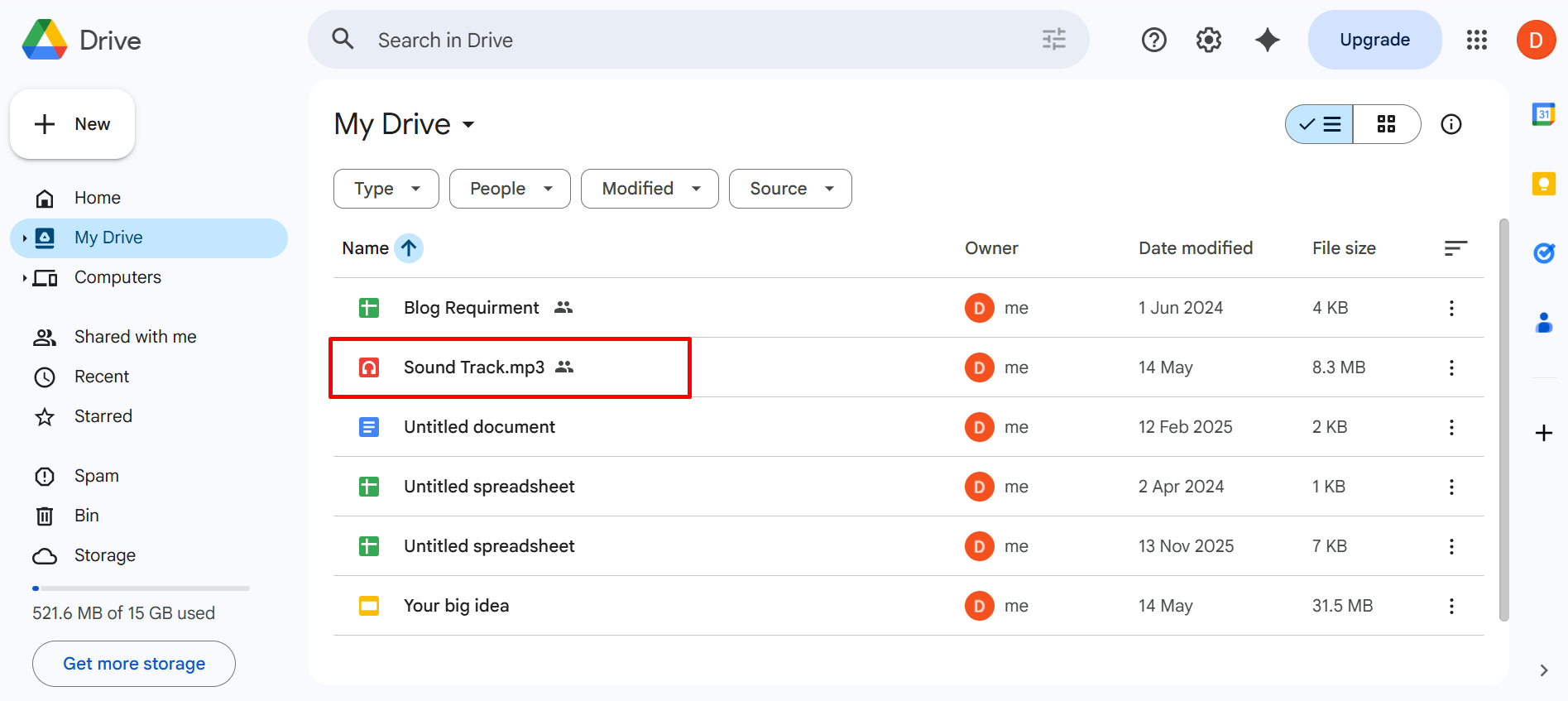
Google Slides does not support direct audio uploads from your computer. You need to upload your MP3 or WAV file to Google Drive first. Go to drive.google.com, click New, select File Upload, and choose your audio file. Wait for the upload to complete before moving to the next step.
Step 2: Open your Google Slides presentation
Open the presentation you want to add music to. Click on the slide where you want the audio to begin. If you want the music to start from the very beginning, select your first slide.
Step 3: Insert the audio file
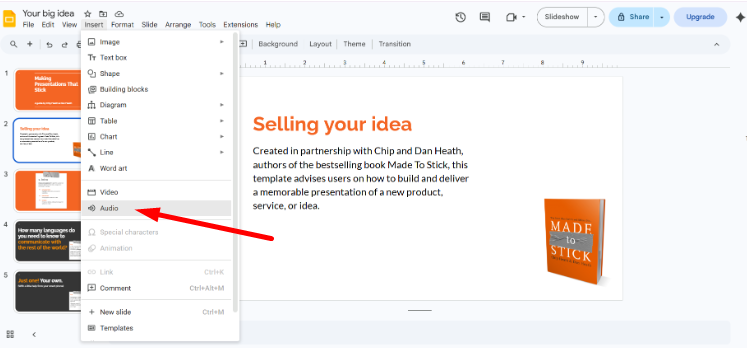
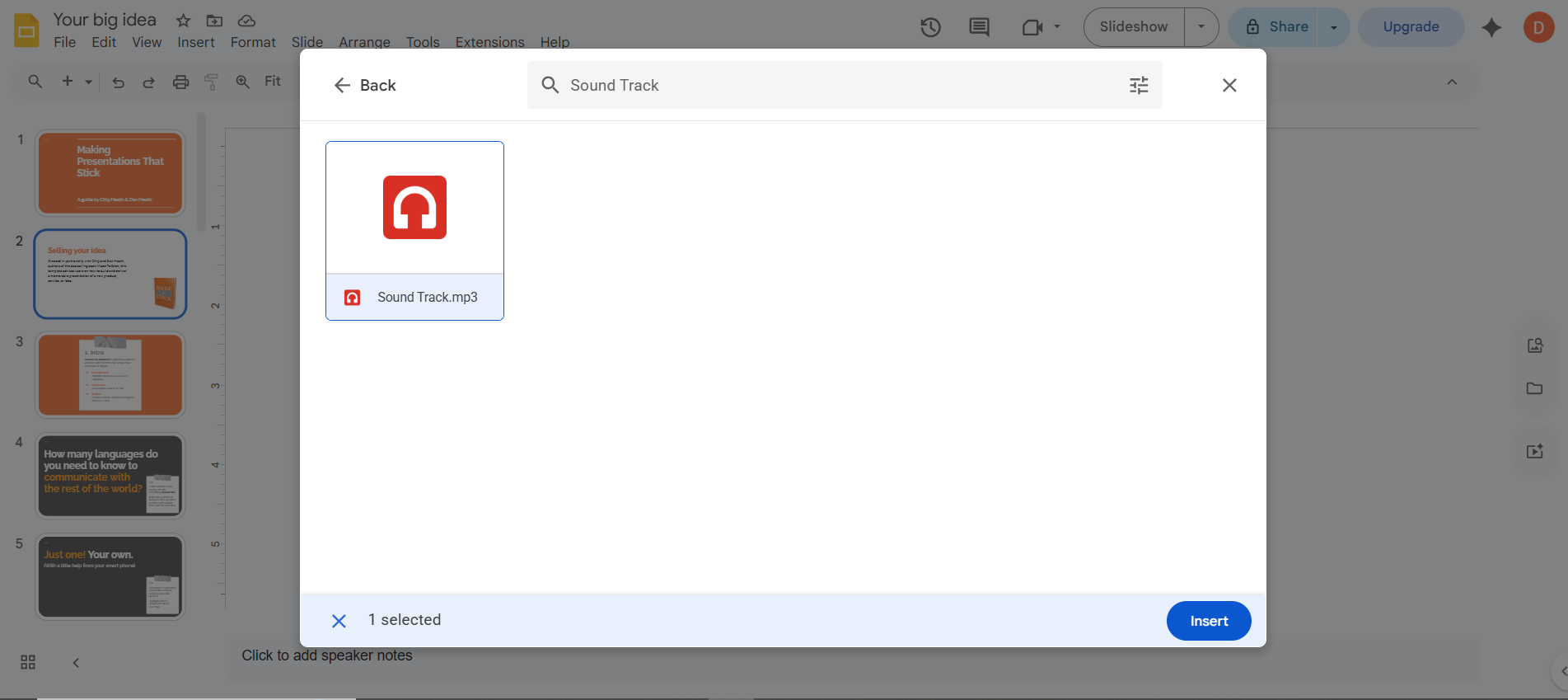
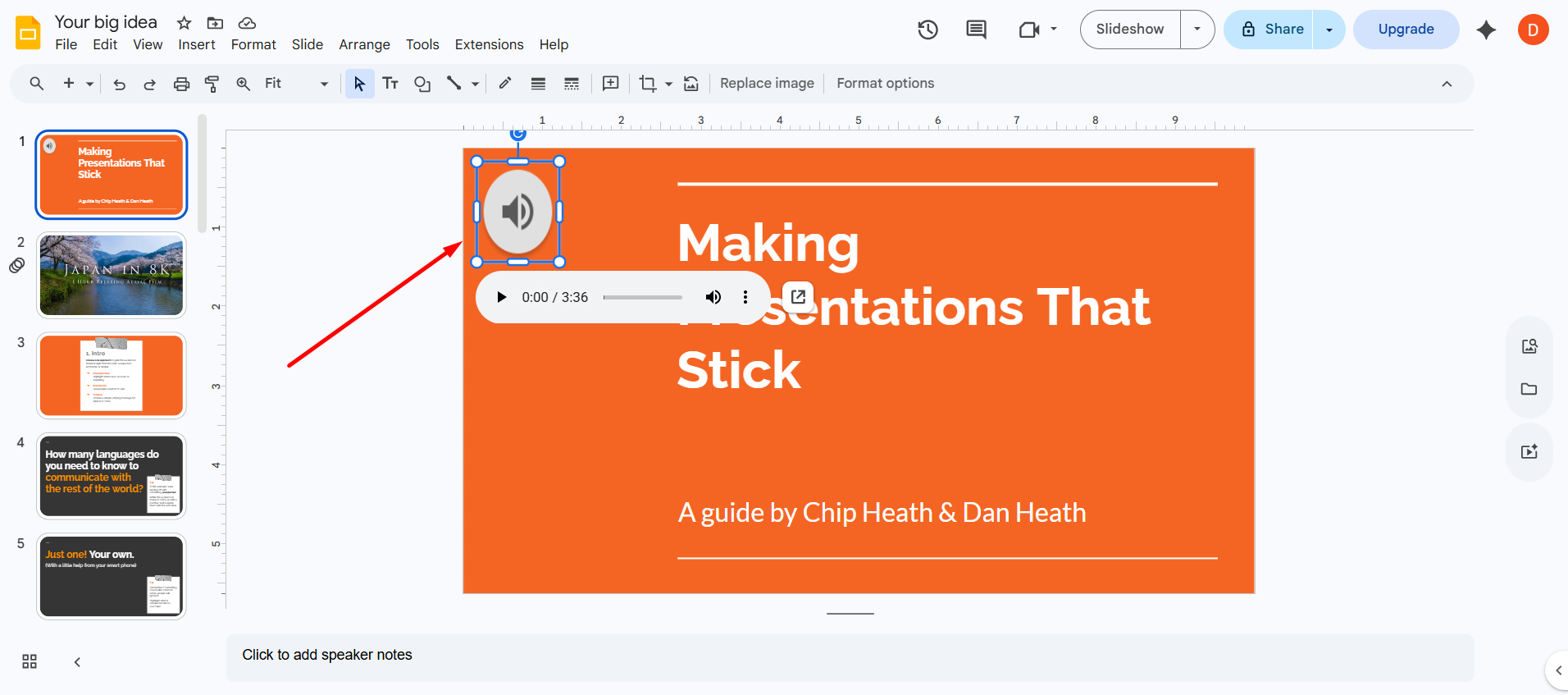
In the top menu, click Insert and then select Audio. A window will appear showing your Google Drive files. Find the audio file you uploaded in Step 1 and click Select. A speaker icon will appear on your slide confirming the audio has been inserted.
Step 4: Open Format Options
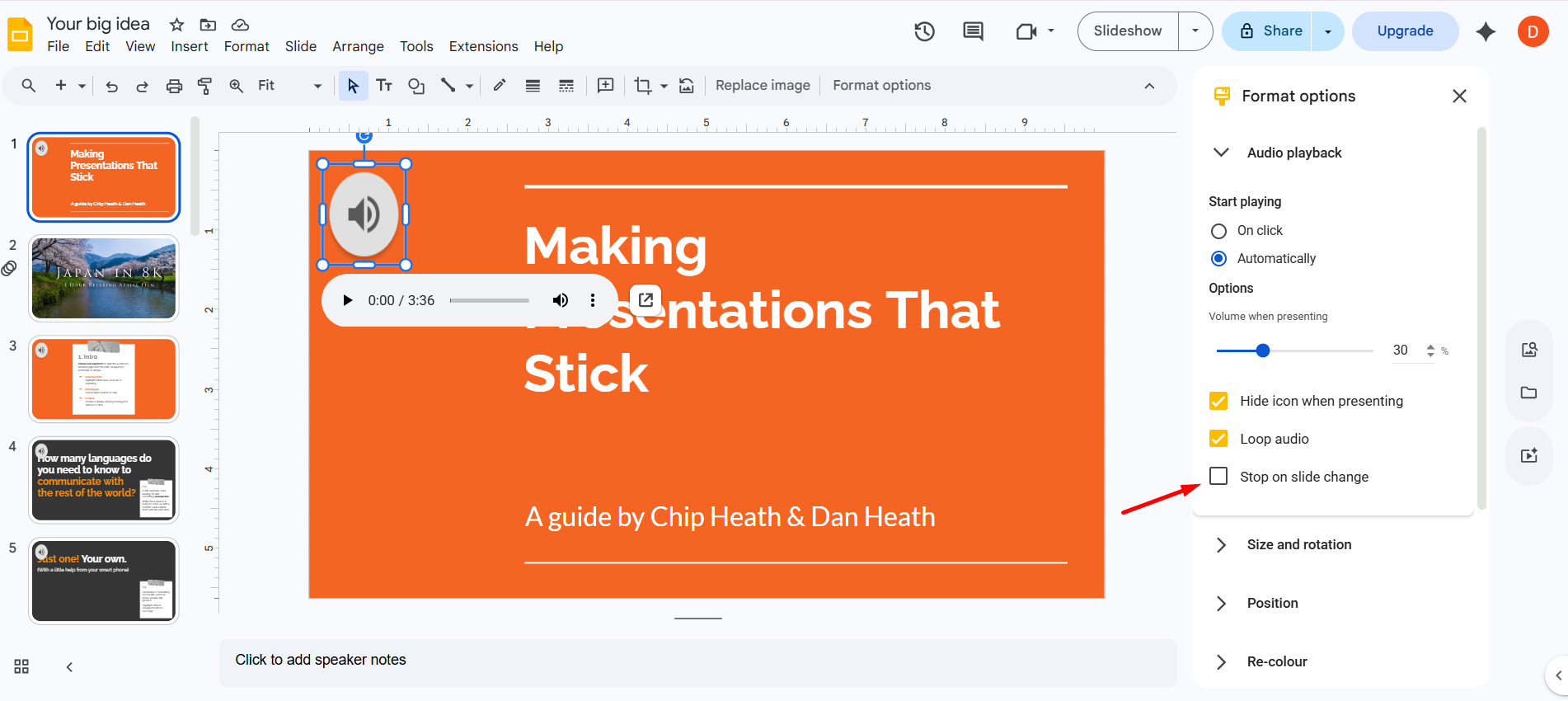
Click on the speaker icon on your slide to select it. Then click Format Options in the top toolbar. A panel will open on the right side of your screen with audio playback settings.
Step 5: Configure your Format Options settings
This is where most people make mistakes. Use the following settings for background music that plays across all slides.
Click outside the panel when you are done. Your music will now play automatically from the first slide and loop continuously until the presentation ends.
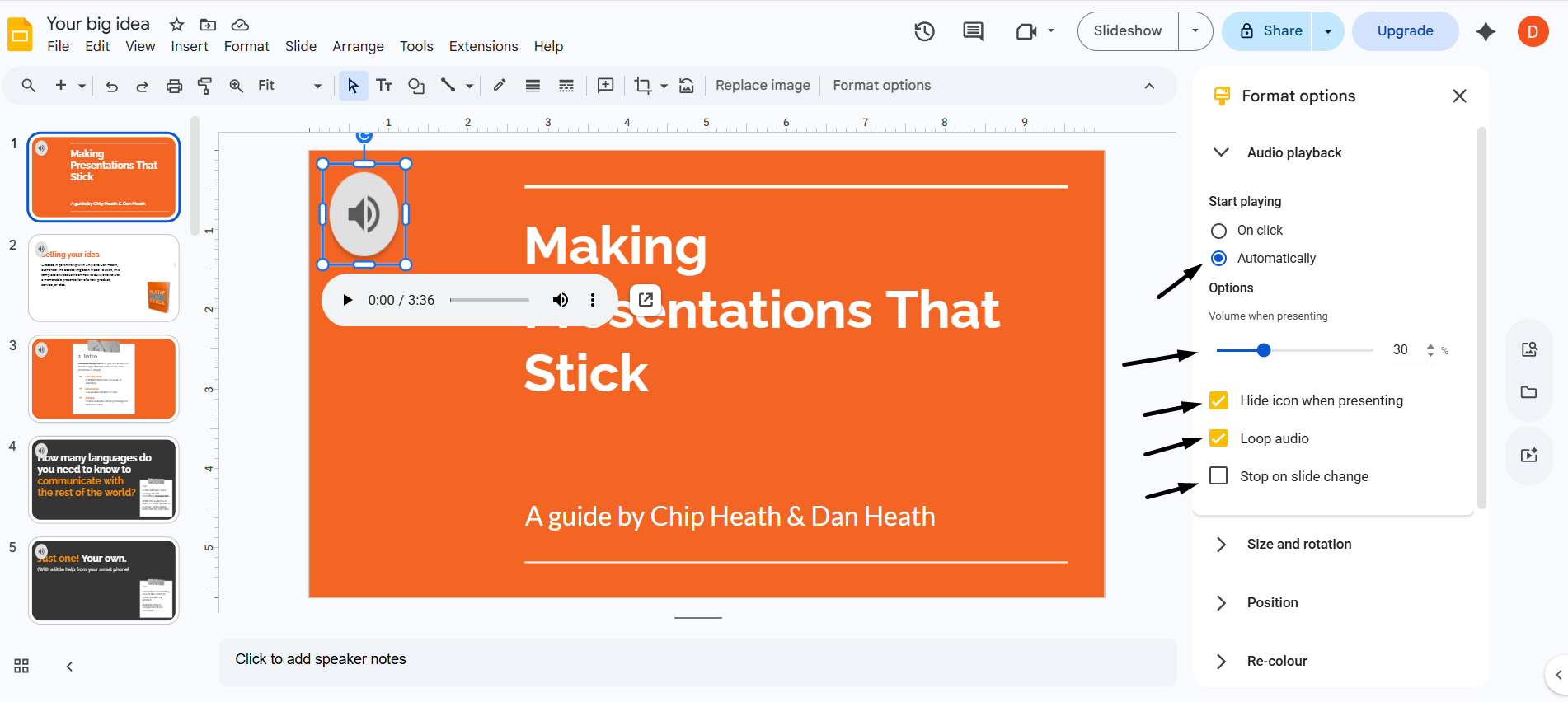
Quick Tip: These 5 settings work together as a system. Missing even one, especially "Stop on slide change," will cause music to stop unexpectedly during your presentation.
Watch: 60-Second Video Walkthrough
Prefer to follow along visually? The walkthrough below shows the complete five-step Format Options setup from start to finish in under sixty seconds. Watch the full sequence before you begin so you know exactly which settings to look for and in what order they appear.
How to Add Background Music to All Slides in Google Slides
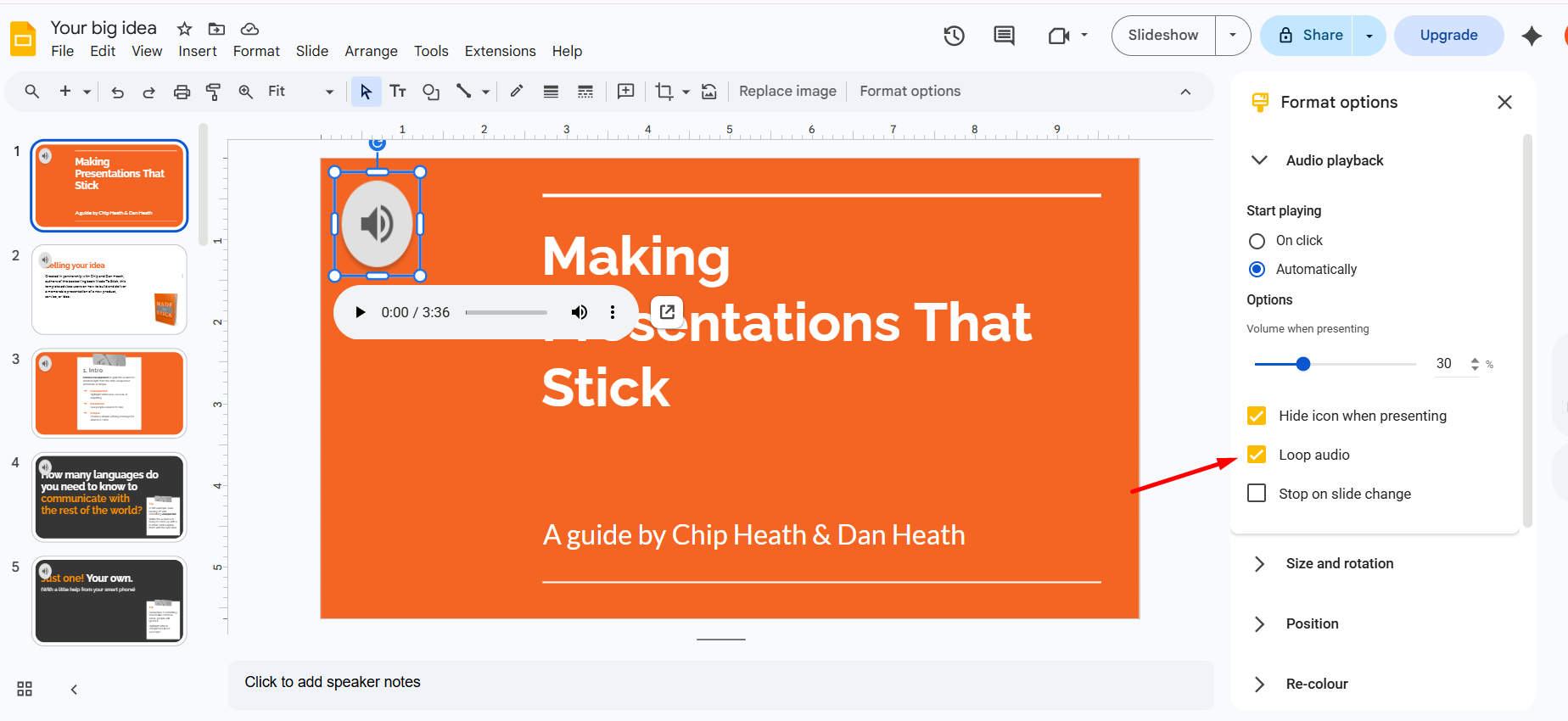
The key to making music play across all slides rather than just one is in the Format Options panel. Specifically you need to set Stop playing to After last slide and check the Loop audio box. These two settings together ensure your music runs continuously from the first slide to the last without stopping mid-presentation.
Common Mistake: Many users set Stop playing to After current slide by accident. This means the music stops as soon as the first slide advances. Always double check this setting before you present.
Can You Add Spotify, Apple Music, or YouTube Music to Google Slides?
This is one of the most common questions we receive and the short answer is no, not directly. Here is why.
Spotify, Apple Music, and YouTube Music all use DRM protection, which means their audio files cannot be downloaded or inserted into third-party applications like Google Slides. Attempting to use these services will not work within the native Google Slides interface.
What you can do instead:
Use royalty-free music from sources that allow free downloads in MP3 or WAV format. Upload the file to Google Drive and follow the five steps above. This is the only method that works reliably within Google Slides without requiring browser extensions or workarounds.
Can you embed a YouTube video for audio?
Yes, but with limitations. You can insert a YouTube video into Google Slides via Insert then Video, but the video will be visible on the slide unless you resize it to be very small and move it off screen. The audio will only play when the video plays, not as seamless background music. This workaround is not recommended for professional presentations.
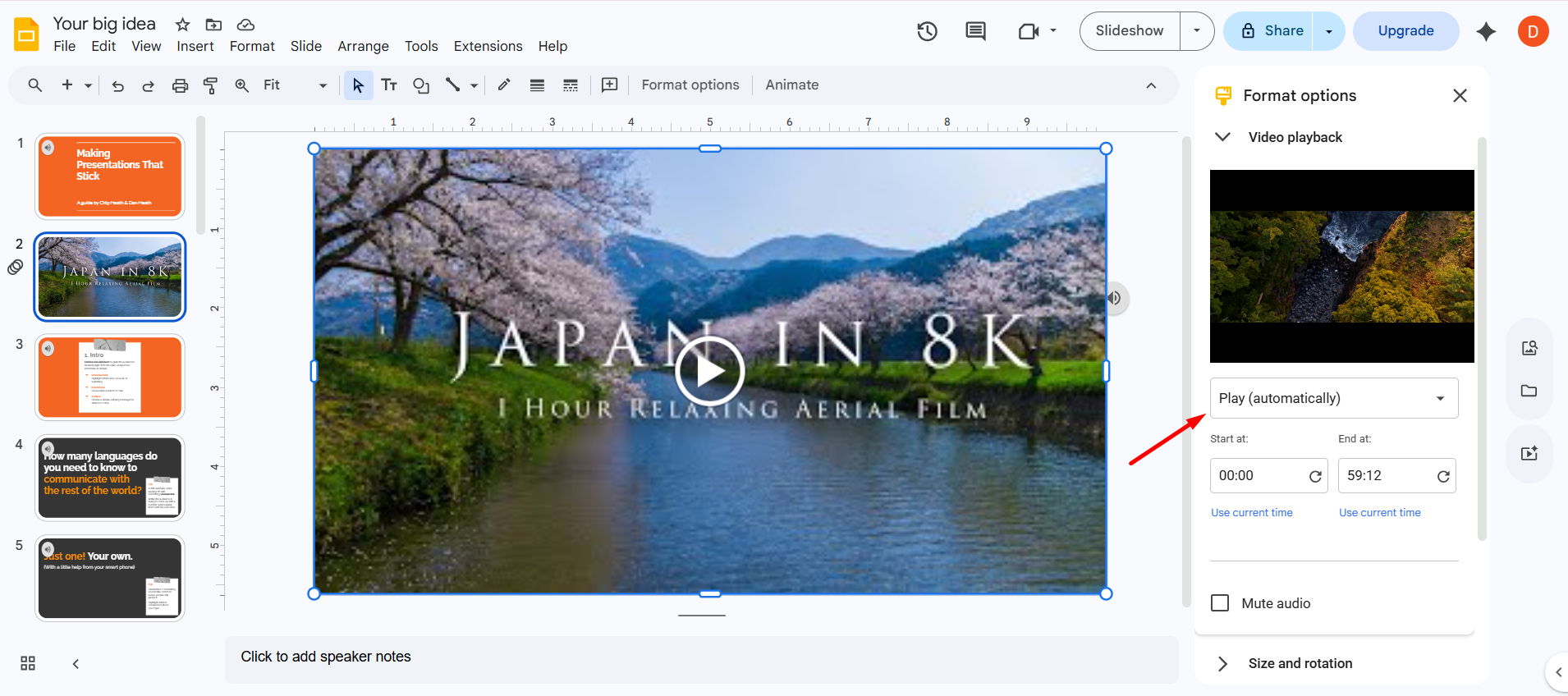
Note: YouTube videos require an internet connection to play. The video thumbnail will be visible on your slide.
Best Free Music for Google Slides Presentations (2026)
Here are the best sources for free, royalty-free music you can legally use in Google Slides presentations.
Recommended genres by presentation type:
- Corporate or business presentations: ambient, light jazz, soft electronic
- Educational or classroom: acoustic, light instrumental
- Creative or portfolio: indie, cinematic
- Celebratory or personal: upbeat pop, acoustic
Of the royalty-free sources in the table above, our team consistently returns to YouTube Audio Library for client decks because the upload format integrates cleanly with Google Drive without triggering the sharing permission errors that affect some third-party hosted files. For presentations built on tight timelines, reliability matters more than catalogue size.
Music Volume, Timing Tips, and Device Support
Volume and timing recommendations:
Device Background Music Supported
For the most reliable audio playback, always present from a desktop browser. Mobile apps and some browsers on mobile devices restrict autoplay audio, which can prevent background music from playing as expected.
Speaker icon visible during presentation Hide icon when presenting not checked Open Format Options and check Hide icon when presenting
Music Genre By Presentation Type
- Corporate / Business → Soft instrumental, light jazz
- Education / School → Upbeat acoustic, light classical
- Creative / Design → Lo-fi, indie, electronic ambient
- Technology → Minimal electronic, ambient synth
- Emotional / Story → Piano, cinematic, orchestral
- Sports / Fitness → Upbeat pop, energetic electronic
Music Volume, Timing Tips, and Device Support
Volume Settings by Presentation Type
Adding Music on Different Devices
- Windows PC / Mac (Chrome): Full support
- Chromebook (Chrome): Full support
- iPhone / iPad (iOS app): NOT supported — Use Safari → slides.google.com → Request Desktop Site
- Android (app): NOT supported — Use Chrome → slides.google.com → Desktop site
When NOT to Use Background Music
- Formal board meetings or executive reviews
- Presentations where the audience needs to concentrate deeply
- Legal, medical, or financial presentations
- Any live demo where system audio matters
- Presentations where you are unsure of the venue's sound setup
- Video content where music clashes with video audio
Troubleshooting Music Problems in Google Slides
Music Stops When I Advance to the Next Slide
Cause: "Stop on slide change" is checked in Format options.
Fix: Click the music speaker icon → Format options → Audio playback → UNCHECK "Stop on slide change".
People I Share With Cannot Hear the Music
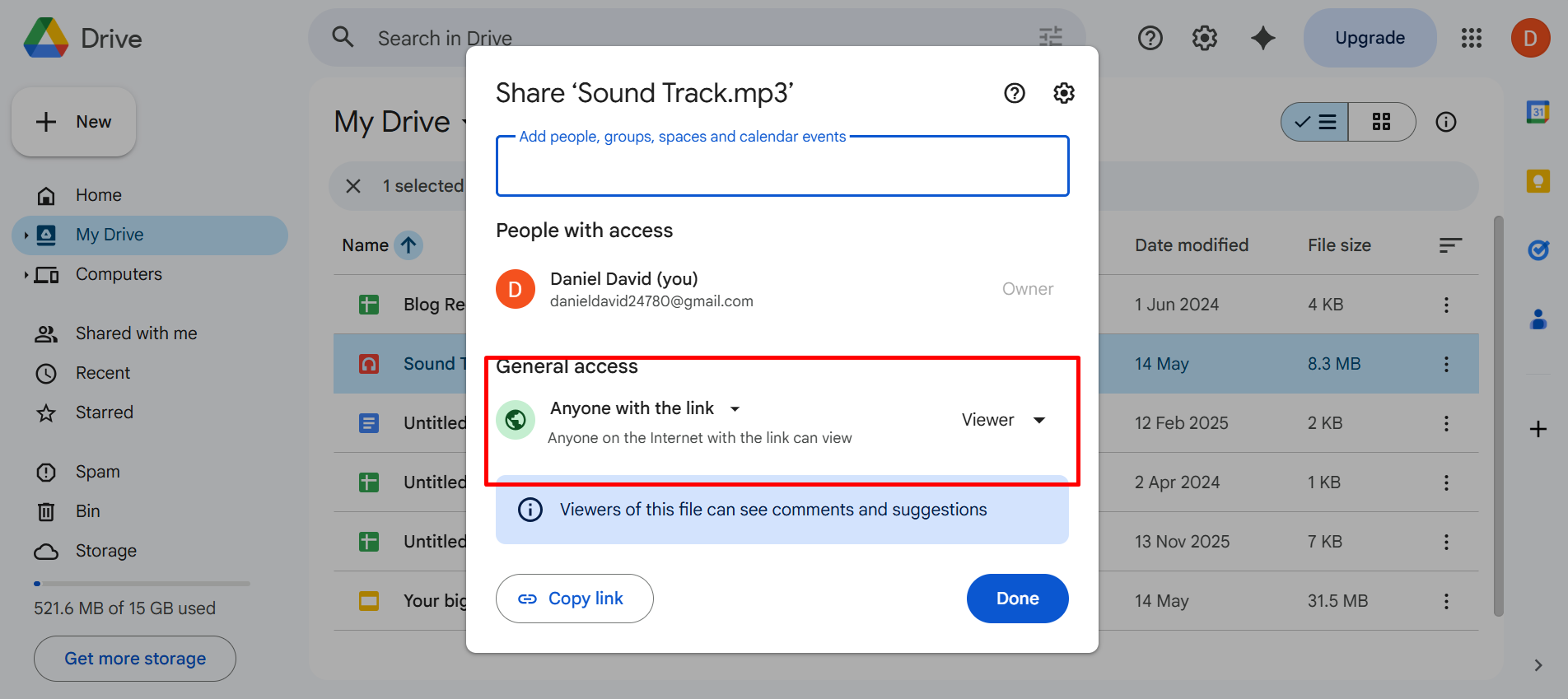
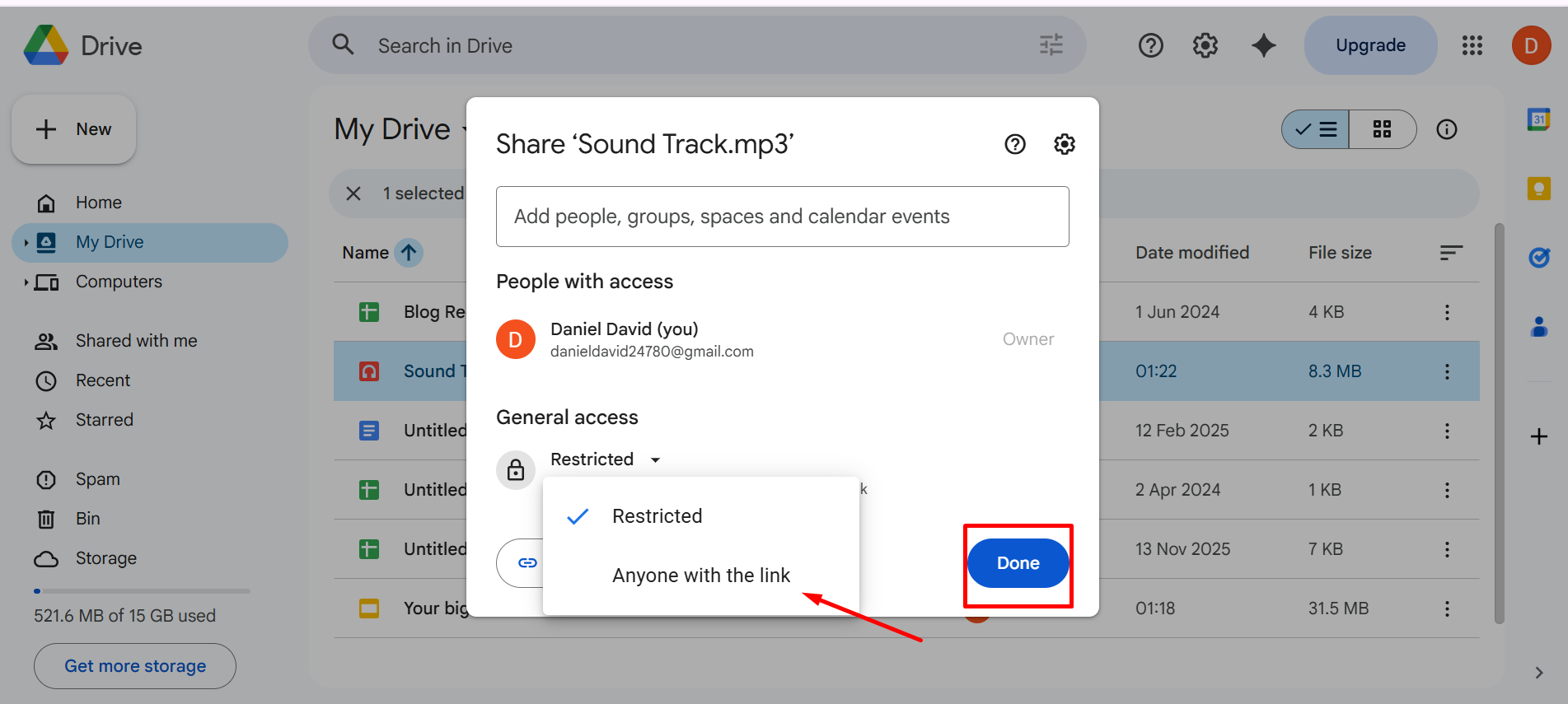
Cause: The music file in Google Drive is set to Restricted / Private.
Fix: Go to drive.google.com → Find your music file → Right-click → Share → Change from "Restricted" to "Anyone with the link can view" → Click Done.
Music Keeps Restarting on Every Single Slide
Cause: Music has been added to multiple slides individually instead of only to slide 1.
Fix: Delete audio icons from slides 2, 3, 4+ and keep music on slide 1 only.
Music Volume Is Too Loud Over My Voice
Fix: Click music icon → Format options → Volume → select Low. If still too loud, use Audacity to reduce volume by 10–15dB → export as MP3 → re-upload to Drive → re-insert.
Frequently Asked Questions — Music in Google Slides
Quick Summary: How to Add Music to Google Slides
- Upload music file (MP3/WAV) to Google Drive
- Set Drive sharing: "Anyone with the link can view"
- In Google Slides: Insert → Audio → My Drive → Select
- Format options: Start playing: Automatically ✓ | Stop on slide change: UNCHECKED ✓ | Loop audio: CHECKED ✓ | Volume: Low or Medium ✓ | Hide icon when presenting: CHECKED ✓
If you create presentations regularly and want to skip the Drive upload workflow, Slidey.io lets you add music and all your media directly without the setup complexity.
For voiceover or narration instead of music, see our guide on how to add audio to Google Slides. Or explore our complete media guide for Google Slides for everything else you can add to your presentations.


.svg)