
Posted on:
August 13, 2026
How to Add Media to Google Slides
Adding media in Google Slides sounds simple until you're 20 minutes before a presentation and your audio won't play, or your embedded video shows a blank screen.
What Types of Media Can You Add to Google Slides?
Google Slides supports several media types, each with its own upload path and quirks. Audio files, videos, animated GIFs, drawings, images, and voiceovers can all be inserted, but some require extra steps most people don't expect.
For instance, audio has to live in Google Drive before you can insert it, and GIFs only animate in Presentation mode, not while you're editing. We'll walk through each type in full detail below.
Audio causes the most support questions and searches of any media type here. It’s mainly because the Drive-upload requirement isn't obvious and isn't explained anywhere in the Insert menu itself. Video is a close second, almost entirely due to black-screen and permissions errors. GIFs and drawings rarely generate confusion once someone learns the Presentation-mode quirk.
How to Add Audio to Google Slides
Basic functions in Google Slides are usually drag-and-drop. Audio is different. The process isn't as obvious at first. The file has to be stored in Google Drive before you can insert it into a slide, which trips up a lot of first-time users.
Step-by-Step: Add Audio from Google Drive
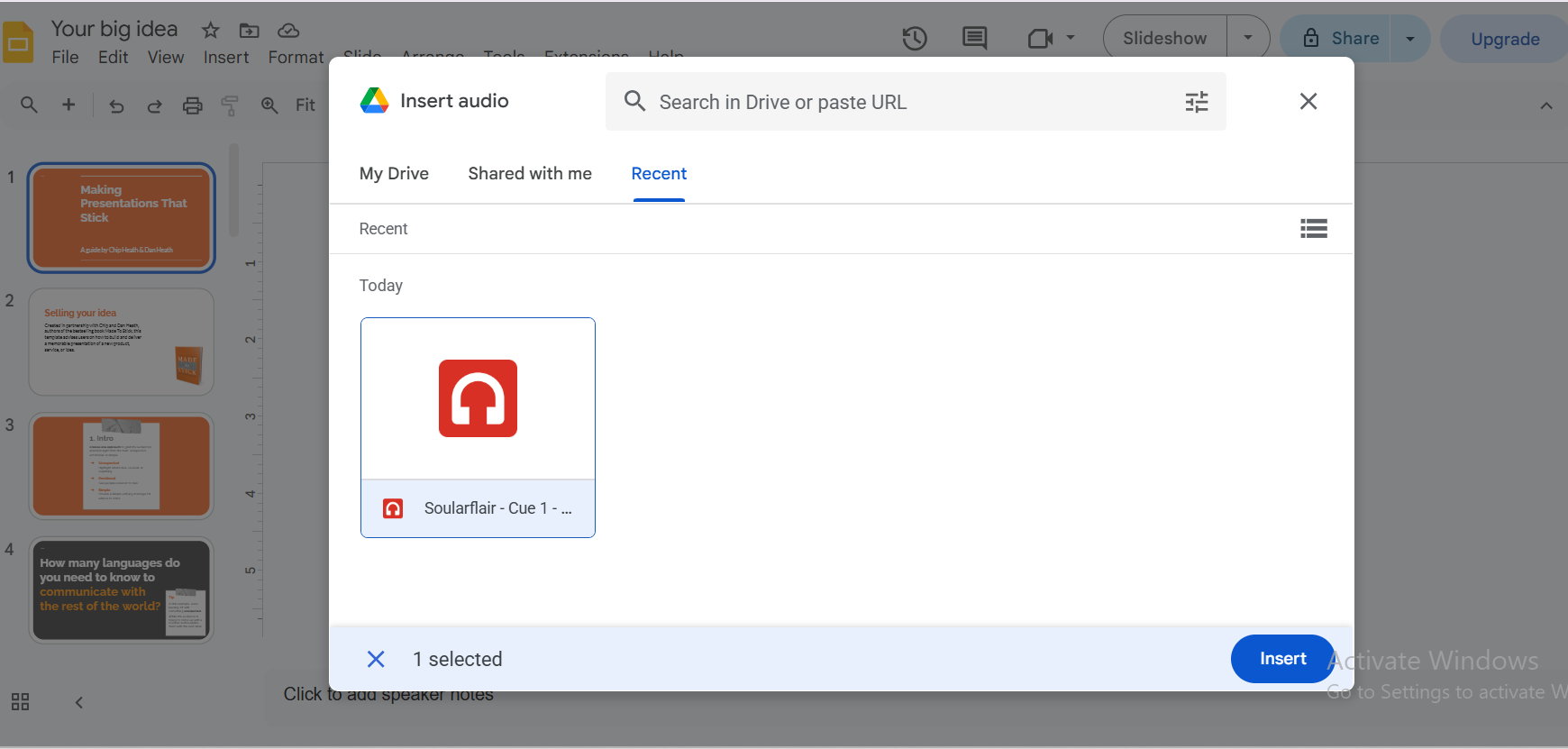
Step 1: Upload your audio file to Google Drive
Step 2: Open your Google Slides presentation
Step 3: Click the slide where you want to add audio
Step 4: Go to Insert in the top toolbar
Step 5: Click Audio from the dropdown menu
Step 6: Select the My Drive tab in the pop-up
Step 7: Find and select your audio file
Step 8: Click Select
Step 9: An audio icon appears on your slide; drag and resize it as needed


We tested a range of file sizes from 5MB to 500MB to determine the file upload limit. The results were rather simple. The file size limit doesn’t cap at such values, nor does it have a significant effect on upload time.
Google Drive itself has essentially no per-file upload limit for most files below 5TB, and a 750GB-per-day account cap. So, finding a failure point at all in the size ranges you'd realistically use isn’t possible. However, your internet speed may have a considerable effect on upload time.
You see how the time changes as the internet speed slows down for the same size of file.
Google Slides supports MP3 and WAV. It may support OGG, but that's not officially confirmed. This also covers adding audio from your computer: uploading directly through Insert > Audio > Audio skips the Drive step, but it's less reliable if you plan to share the file with others, since the file lives locally rather than in Drive where sharing permissions apply.
How to Make Audio Play Automatically
Audio doesn’t play automatically in Google Slides. The presenter has to click the audio icon to play any inserted audio clips. But you can play audio automatically by following the steps below:
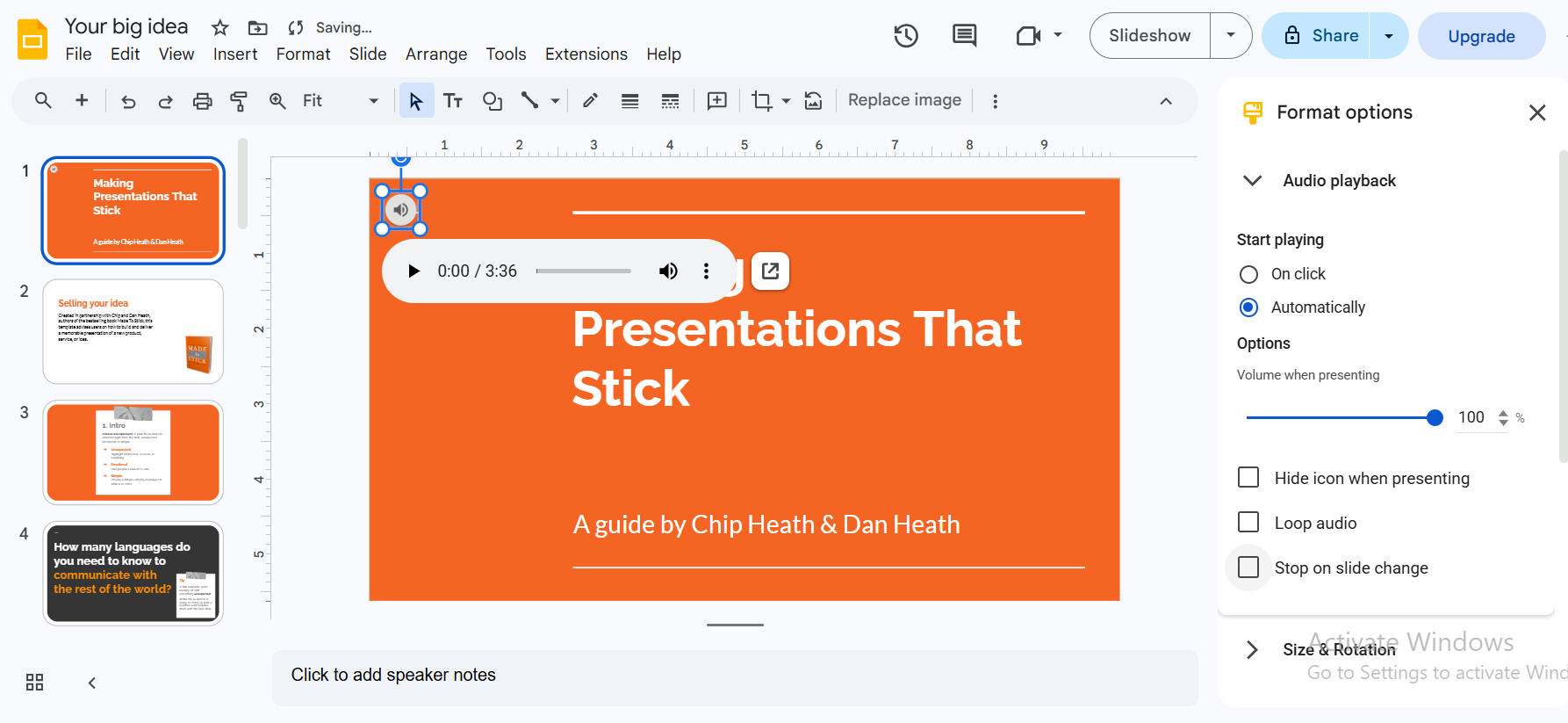
Step 1: Click the audio icon on your slide
Step 2: Click Format options
Step 3: Under Audio playback, select Automatically
Step 4: Check Loop audio if you want it to repeat
Step 5: Check Stop on slide change if needed

How to Add Music to Google Slides
Music isn't technically different from audio. You add it using the same steps covered above. But some nuances are worth knowing. It includes playing music across all slides, adding music from Spotify, and looping music through a presentation.
Background Music for Google Slides (Plays on All Slides)
Google Slides has no native "play across all slides" setting, but there's a workaround:
Step 1: Add your music file to your first slide using the method above
Step 2: Click the audio icon and open Format options
Step 3: Set playback to Automatically
Step 4: Uncheck Stop on slide change
With Stop on slide change unchecked, the music keeps playing as you advance through slides instead of restarting on each one.
Free Music Sources for Google Slides Presentations
Before you can add music, you need a file. Make sure it’s royalty-free if you're presenting publicly or posting recordings online. Here are the best free sources of music for Google Slides presentations:
- YouTube Audio Library: free, no copyright restrictions, large library.
- Free Music Archive (freemusicarchive.org): Curated free music across genres, licensing varies by track, check each one.
- Pixabay Music (pixabay.com/music): free for commercial use, no attribution required.
- Bensound (bensound.com): free tier requires attribution in your presentation credits.
- ccMixter (ccmixter.org): mostly Creative Commons, but license terms vary by track, so check before reusing.
Can You Add Music to Google Slides from Spotify?
Unfortunately, no. Spotify's DRM prevents its audio from being downloaded or used in other applications. For all Spotify workarounds and legal alternatives, see our complete guide on how to add music to Google Slides.
How to Insert Audio into Google Slides (All Methods Compared)
Many people commonly ask how to insert audio into Google Slides. But it has more than one answer. We have already discussed the easiest method to insert audio into Google Slides above. But there are more methods that you can try to add different types of audio. Each method works best in different situations. That’s why we will compare them all to help you find the one you can do best.
So, let’s compare all possible methods to add audio to Google Slides
Which method is right for you?
- A pre-recorded file, use Drive upload.
- Recording yourself, use a microphone plus Drive.
- Audio already on YouTube, use the embed method.
If you don’t want to waste your precious time, automate all these steps by using Slidey.io to create full presentations, and save your precious time.
How to Add a Video to Google Slides
Video is the second most common media type people add to presentations. The process to embed video in Google Slides is simpler than most people expect. Many users run into issues with videos. Sometimes the video shows a black screen when presenting; other times, it won’t even play on other computers. Some users even complain that their videos are not loading in presentation mode. All these issues are easily fixable. There are two main methods to embed a video in Google Slides: embedding a YouTube video or uploading your own video from Google Drive.
Last tested on 6th August, 2026.
Method 1: Add a YouTube Video to Google Slides
Step 1: Copy the YouTube video URL
Step 2: Open Google Slides and click the slide
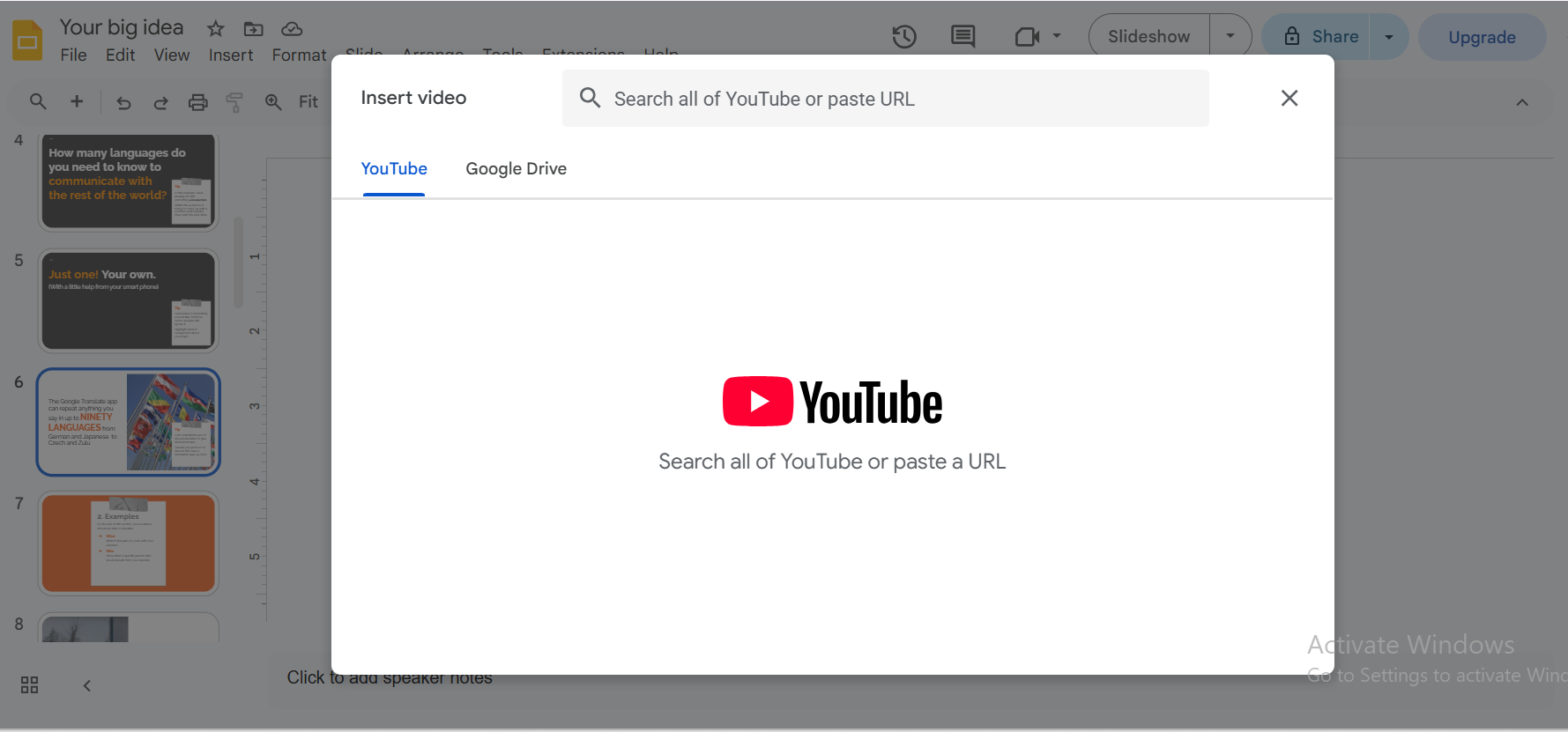
Step 3: Click Insert in the top menu
Step 4: Select Video from the dropdown
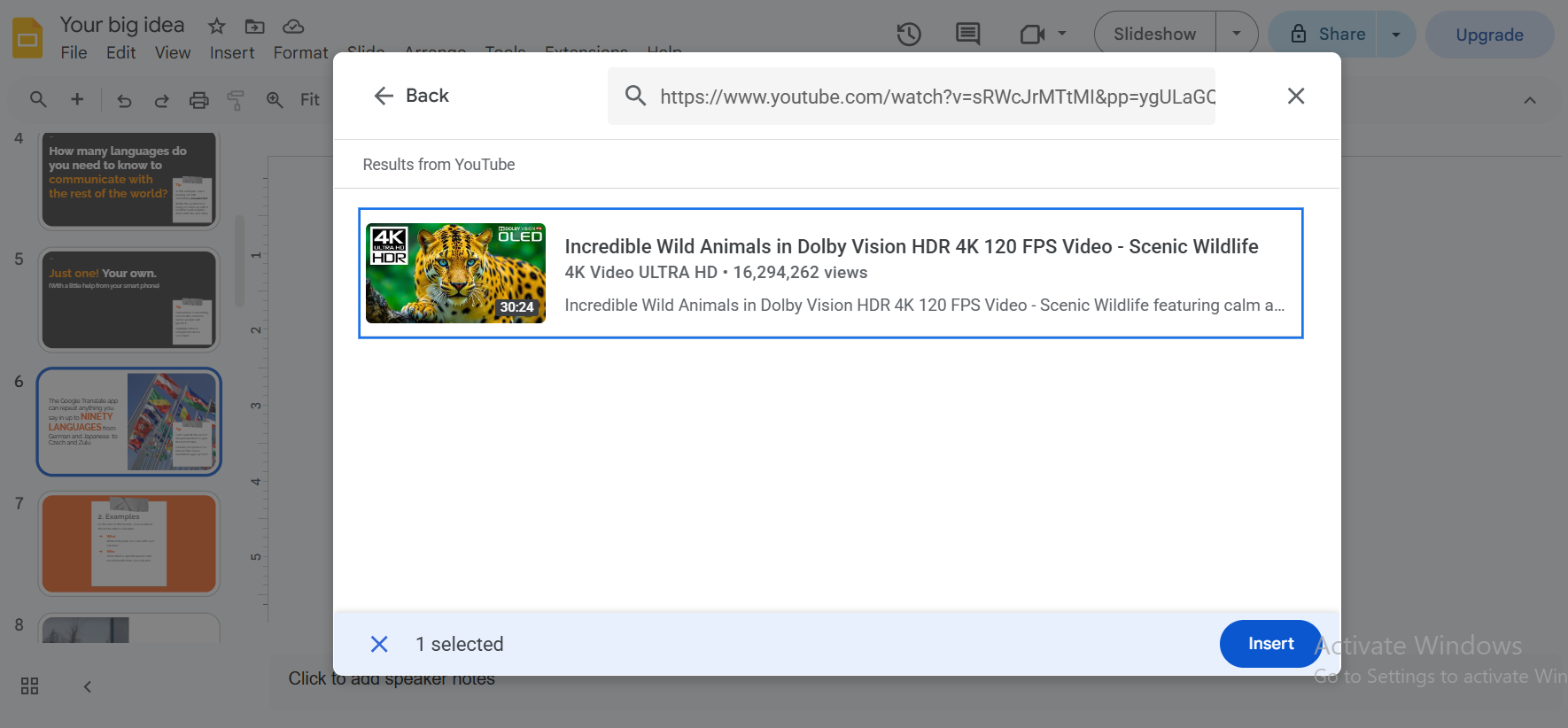
Step 5: Select By URL or Search YouTube
Step 6: If using URL: If using URL, paste the link and click Select
Step 7: If using Search, type keywords and select the video
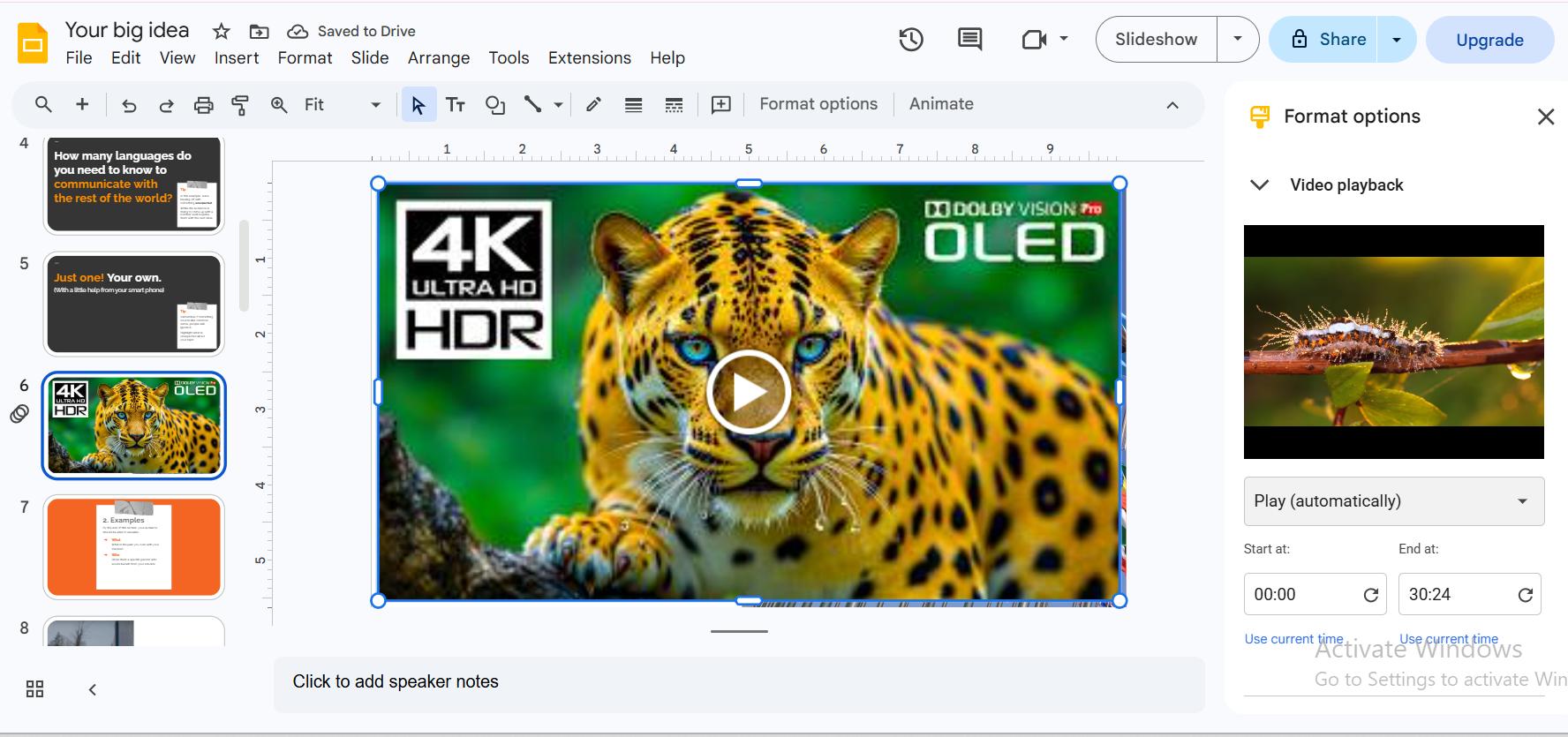
Step 8: The video thumbnail appears on your slide; drag to resize
Step 9: Click the video, then Video options to set autoplay, start/end time, and mute


Method 2 — Add a Video from Google Drive or Computer
Step 1: Upload your video to Google Drive if it's saved on your computer
Step 2: In Google Slides, go to Insert > Video
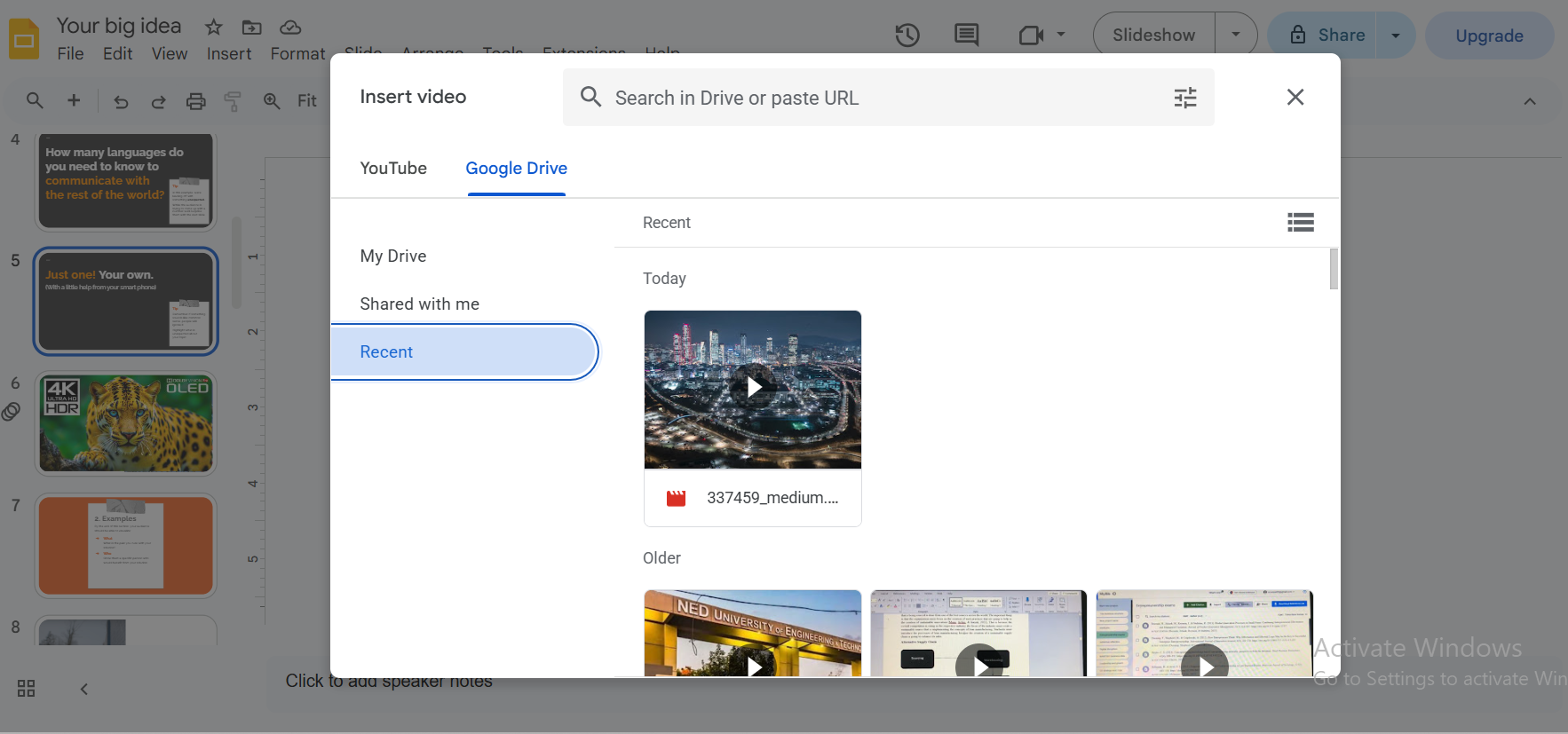
Step 3: Click the Google Drive tab
Step 4: Locate your video file and click Select
Step 5: Adjust size and position
Important: Videos from Drive must be shared with viewers. Set the Drive file's sharing setting to "Anyone with the link can view," or viewers will see a permissions error instead of your video.
Video Playback Settings (Autoplay, Mute, Loop)
Click the embedded video to open Video Playback Settings:
- Autoplay when presenting: video starts as soon as the slide appears
- Mute audio: video plays silently
- Loop video: repeats automatically
- Set start time: skip the video intro
- Set end time: stop before the video ends
One commonly missed setting interaction is having both "Mute" and "Autoplay" set with sound-based content. We tested it and found that the video still autoplays silently. So if you like a video but don’t like the original soundtrack, you can still play the video without the original soundtrack. You can even add another overlay track or narration on top of that, following the steps above.
Common Video Problems and Fixes
- Black screen: Refresh the presentation, or switch to Chrome browser
- Video won't load: Check your internet connection and Drive sharing permissions
- No sound: Unmute in Video options and check your system volume
- Video too slow or choppy: Compress the file before uploading (HandBrake is free).
- Can't find YouTube video via search: Use the direct URL tab instead
- Playback Error on Uploaded Video: Check the share settings and set it to "Anyone with the link can view"
How to Draw on Google Slides
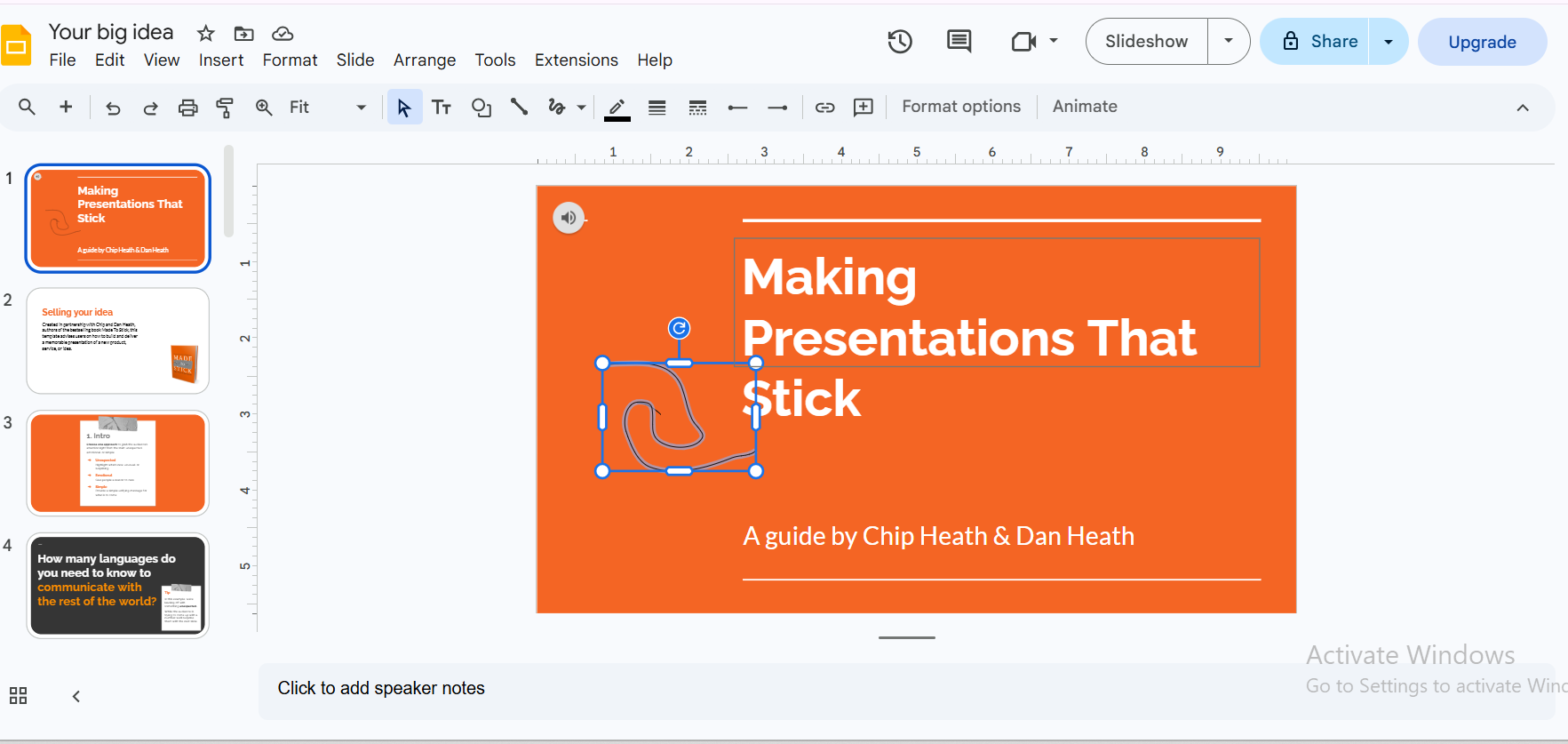
Do you know you can hand-draw on Google Slides as well? Not all media comes from external files. Google Slides has a built-in drawing tool called Scribble that allows freehand drawing in Google Slides. It lets you annotate, sketch, or draw freehand directly on any slide. It's simple but useful, especially for teachers, explainer presentations, or anyone who wants to add a personal touch. But how to draw on Google Slides? Let’s find out.
Using the Scribble Tool in Google Slides
Step 1: Open your Google Slides presentation
Step 2: Click Insert in the top menu
Step 3: Click Line from the dropdown
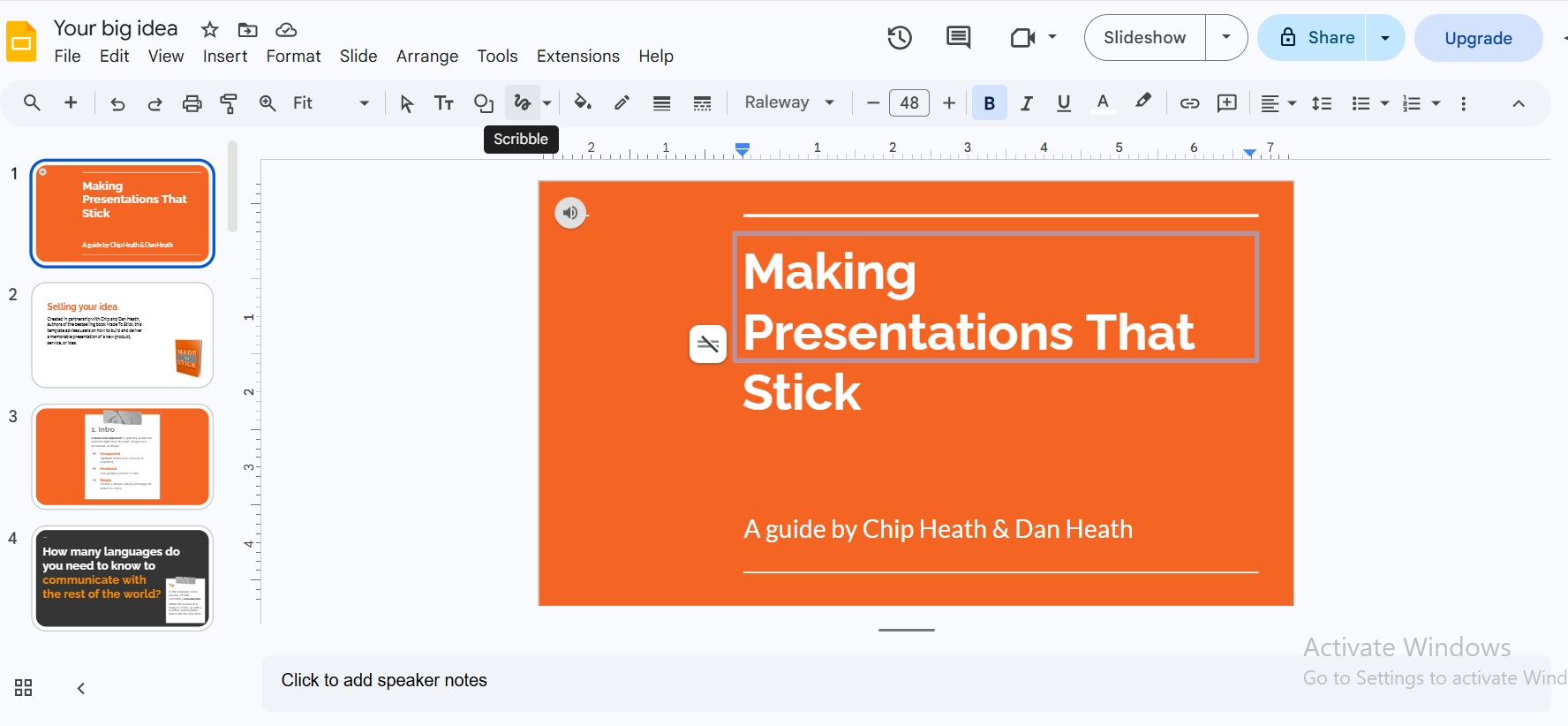
Step 4: At the top of the sub-menu, select the Scribble tool in Google Slides
Step 5: Your cursor becomes a crosshair/pencil
Step 6: Click and drag on your slide to draw freely
Step 7: Release your mouse to finish the stroke
Step 8: Use the toolbar to change color, line thickness, and line style

How to Draw Shapes and Lines
You don’t need the Scribble tool for basic symbols. Add straight lines, arrows, curves, and basic shapes via Insert > Line or Insert > Shape. These are more precise than freehand drawing and snap to the grid for clean results
Limitations of Drawing in Google Slides
Although the Scribble tool is very useful, nothing is perfect. There are a few limitations that you must know:
- No pressure sensitivity; line thickness stays uniform
- No eraser inside Scribble; use Ctrl+Z or Cmd+Z to undo
- Difficult to use on mobile
- Limited to lines and curves, no paint bucket or fill tool
- Drawings can't be exported as separate files
As an alternative, you can create a drawing in Google Drawings and insert it as an image into your slide. This gives you more control and a dedicated canvas to work on.
How to Add GIFs to Google Slides
GIFs are one of the most popular additions to modern presentations, especially for students and younger audiences. The good news? They're easy to add.
There are two methods to add GIFs to your Google Slides. Either upload from your computer or by URL. Let’s have a look at both methods step-by-step.
Method 1 - Upload GIF
Step 1: Save the GIF to your computer
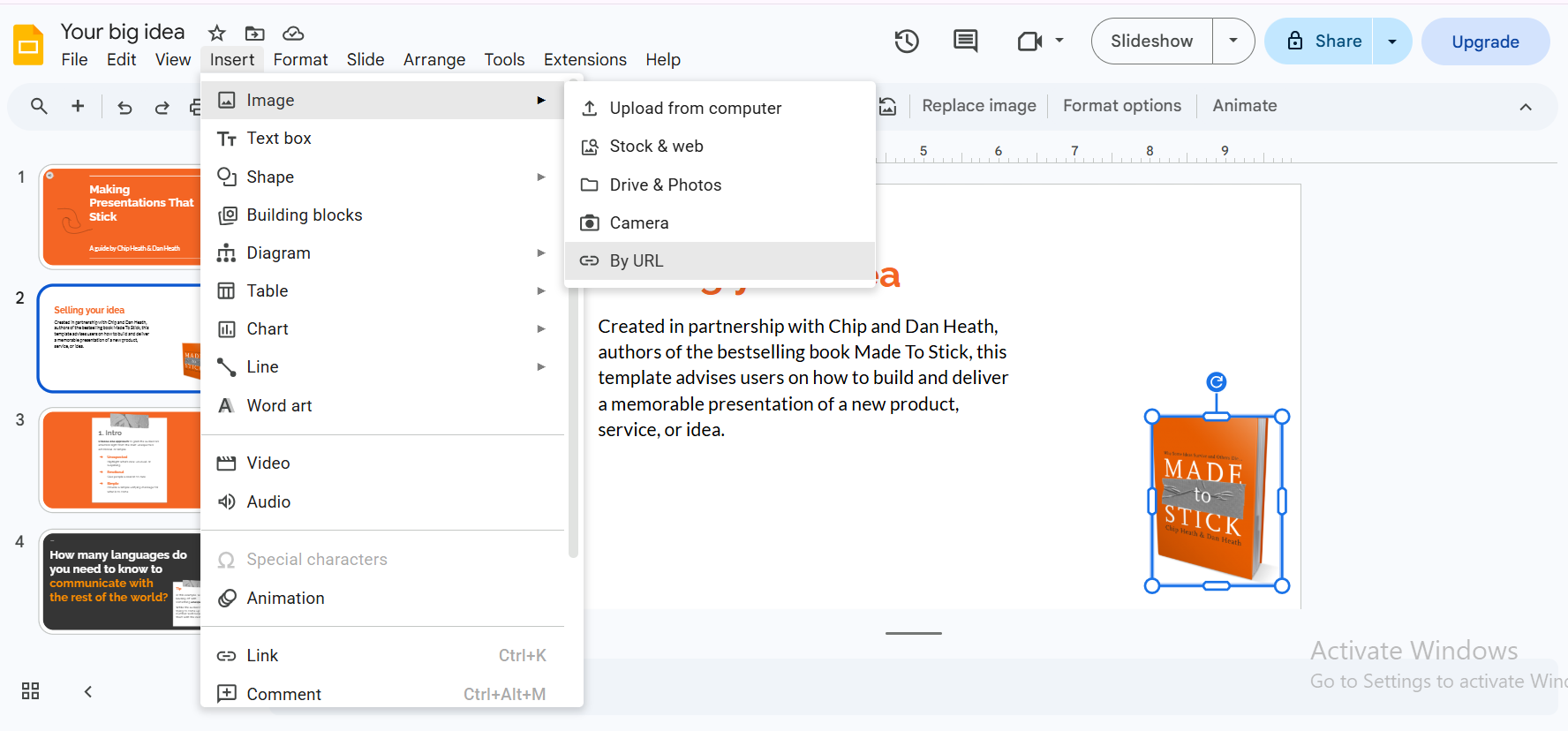
Step 2: Insert > Image > Upload from computer
Step 3: Select your GIF and click Open
Step 4: The GIF appears on your slide (animates in Present mode only)

Method 2 - Insert by URL
Step 1: Copy the direct GIF URL from a site like Giphy or Tenor
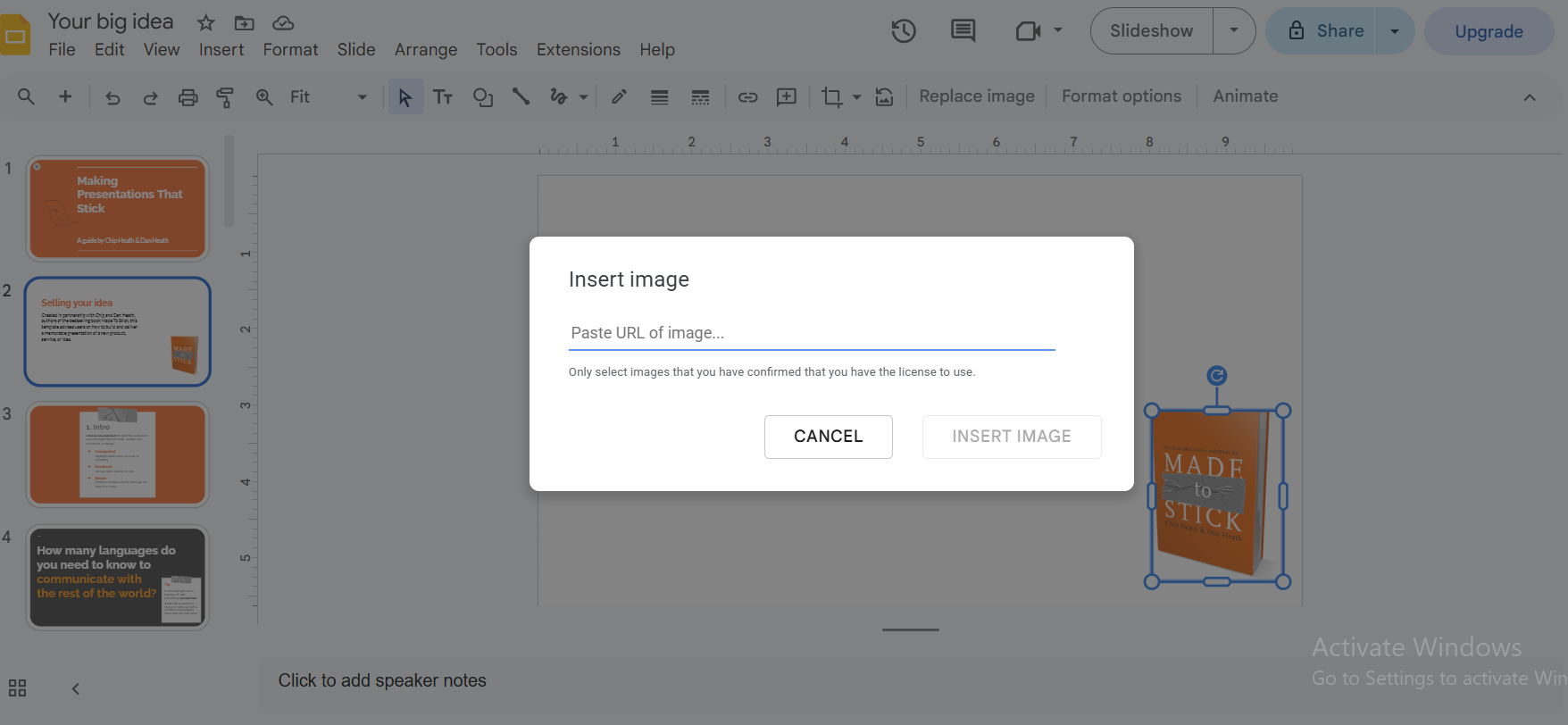
Step 2: Insert > Image > By URL
Step 3: Paste the URL and click Insert
Best GIF Sources:
- Giphy : The largest GIF library online
- Tenor: Google-owned, strong search
- Gfycat: higher-quality, smoother GIFs
- EZGif.com: for making your own custom GIFs
We tested to verify the GIF file size in practice. Usually GIFs are under 500 KB, but we went beyond that. Up to 2 MB, the GIFs worked fine on fast internet. Internet speed was a very important factor in that. However, after that, even faster internet can’t upload larger GIFs properly. They started lagging and even failed to upload entirely. So, make sure your GIFs are under 500 KB.
Important: GIFs only animate in Presentation (Present) mode. In edit mode, they appear as static images. Don’t panic when your funny GIFs don’t move during editing. It’s completely normal.
How to Add a Voiceover to Google Slides
A voiceover is a recorded narration tied to specific slides, unlike background music. You record your own voice explaining the content of each slide.
Voiceovers are tied to specific slides and walk viewers through your content, making them ideal for async presentations, e-learning, and recorded lectures. But the question is how to add a voiceover to Google Slides?
Google Slides has no built-in recorder, so you record externally and import via Drive.
How to Record Your Voiceover (Free Tools)
You can easily record any voiceover using external tools. No need to pay a premium for advanced tools. Here we have curated a list of free voiceover recording tools you can use:
- Audacity: free, desktop, Windows/Mac, professional quality
- GarageBand : (free on Mac)
- Online Voice Recorder: no install, works in browser
- Screencastify: Chrome extension, records audio and screen together
- Windows Voice Recorder : built into Windows
- QuickTime Player: built into Mac, File > New Audio Recording
Once recorded, export as MP3 and upload to Google Drive. Then insert it using Insert > Audio, exactly as described in the audio section above.
How to Sync Voiceover with Specific Slides
If you are making narrated presentations where each slide has its own audio, follow the steps below to sync your voiceover with specific slides:
Step 1: Add a separate audio file to each slide instead of one file for the whole deck
Step 2: In Format options, enable Stop on slide change
Step 3: Each slide now plays its own narration and stops when you advance

AI Voiceover Option for Google Slides
AI text-to-speech tools can generate voiceover audio from a script when you'd rather not record your own voice.
Note: None of these tools export directly to Slides or Drive. You always land on local MP3/WAV first, then manually upload to Drive, then Insert > Audio. There's no native integration for any of the three that skips that step. Descript sometimes defaults to M4A in some flows, so make sure to convert it into a compatible format before uploading.
Google Slides Supported Media File Formats (Quick Reference)
Not sure whether your file will work? Use this table as a quick reference for Google Slides media formats before uploading.
File size tip: If a video or audio file is too large, use HandBrake (free) to compress video, or Audacity to compress audio, before uploading to Drive.
How to Add Media to Google Slides on Different Devices
The steps above apply to Google Slides in a desktop browser, which is where most features are available. But if you're working on a different device, the steps might be a little different. Here's what you need to know about each device’s specifications
Windows PC or Mac
Everything in this guide applies as written. Use Chrome for the fewest compatibility issues.
Chromebook
Chromebooks run the full web version of Google Slides, so nearly everything works the same as on desktop. Use slides.google.com, not the Android app. For recording audio, use Chrome's built-in voice recorder, an online tool, or the Screencastify extension, then save to Drive before inserting. Older Chromebooks may struggle with high-resolution video playback
iPhone or iPad
The iOS app doesn't support adding audio at all. Use the web version in Safari (request desktop site) instead. Images can be added from your Camera Roll. YouTube videos work through the app with some limitations. GIFs can be uploaded through the app.
See our complete guide on how to add audio on iPad.
Android
Audio requires the desktop web version; the Android app doesn't support audio insertion. Images can be added from your gallery. YouTube embeds and GIF uploads work through the app. For audio or complex media on any mobile device, switch to a desktop browser.
Troubleshooting Media Problems in Google Slides
Google Slides Audio Not Working
- Wrong file format: convert to MP3
- File too large: compress with Audacity
- Drive permissions wrong: set sharing to "Anyone with the link can view"
- Browser issue: switch to Chrome
- Still not working: clear your browser cache
- Make sure Sound is set to Allow on your browser
Google Slides Video Not Playing or Shows Black Screen
- Refresh the presentation (Ctrl+R or Cmd+R)
- Check your internet connection
- YouTube videos require an active internet connection to play
- Try Chrome instead of another browser
- Verify Drive sharing is set to "Anyone with the link can view"
- Switch to Present mode instead of Edit mode
- Check third-party cookie restrictions
Can't Find Audio Option in Insert Menu
- Insert > Audio only appears in the web version, not the mobile app
- Use slides.google.com in a browser
- Make sure you're signed into your Google account
- If greyed out, your file may not be in Drive yet
- Update your Google Slides for the latest version
Audio Plays in Edit Mode But Not When Presenting
- Click the audio icon and open Format options
- Under Audio playback, set Start playing to Automatically or On click
- Check that sharing settings allow audio to load for your audience
- Make sure the volume is not set to 0%
GIF Not Animating in Google Slides
This is expected behavior. GIFs do not animate in edit mode. They only animate when you enter Presentation mode (click Present in the top right). If your GIF isn't animating during a live presentation, try re-inserting it as a fresh upload.
Video Loads But Has No Sound
- Click the video and open Video options
- Make sure Mute audio isn't checked
- Check system and browser volume
- For YouTube videos, confirm the original video actually has audio
Frequently Asked Questions About Media in Google Slides
Create Media-Rich Presentations Faster with Slidey.io
If you've read this far, you now know how involved adding media to Google Slides can actually be. Uploading files to Drive, adjusting format options, troubleshooting permissions, working around mobile limitations, and so much more. Every step is doable, but it adds up.
That's exactly why we built Slidey.io. It's designed for people who want professional, media-rich presentations without the manual overhead.
Here's what's different:
- No Drive uploading required. Add audio and video directly from your computer
- AI-powered media placement. It automatically suggests where the media fits best in your slides
- Works on any device, including mobile, without the feature restrictions of the Slides app
- One-click professional presentations with media already built in
- Completely free to try, no credit card needed
Try Slidey.io Free — Build Your First Media Presentation in 5 Minutes
Whether you stick with Google Slides or give Slidey.io a try, you now have everything you need to add audio, video, music, GIFs, voiceovers, and drawings to any presentation, on any device.


.svg)